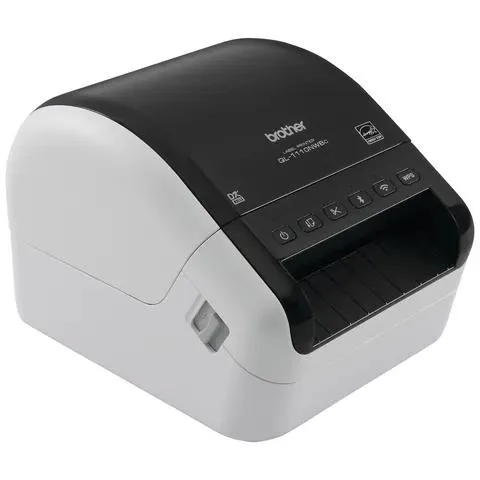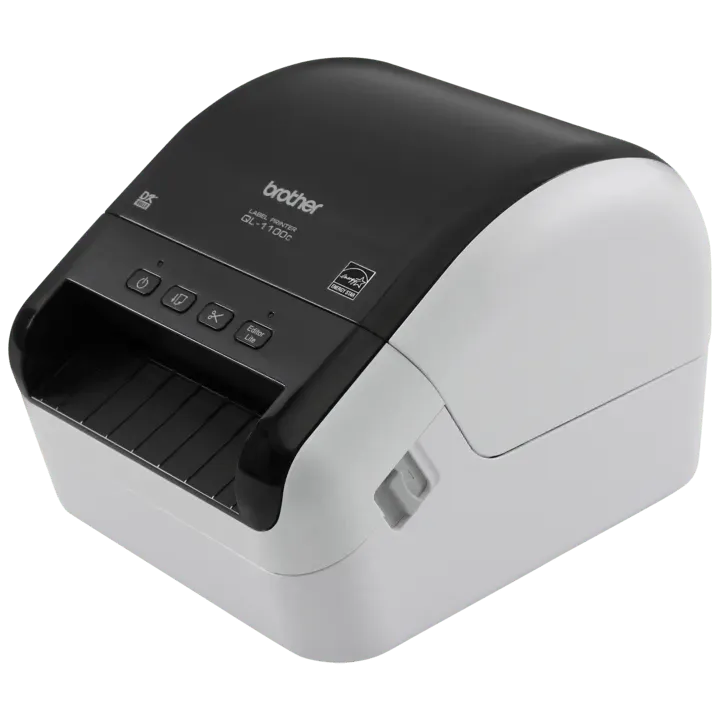
Brother The cut-to-length desk
Brother QL-1100C
Wide-format DK labels and an automatic cutter, built around a computer USB workflow.
Research and retailer links cover US models. Check local availability and the exact regional variant before buying.
One order needs a shipping label; the next task needs a narrow address label. Start with those different jobs, then decide whether pre-sized rolls, continuous labels and an automatic cutter belong in your setup.
WHAT THE EVIDENCE CAN TELL YOU
We compare exact-model instructions, flag conflicting specifications and explain the file-to-paper steps. Sources and their check dates sit beside the advice. Manufacturer images and product illustrations are labelled; neither is a photograph from our own hardware tests.
We have not physically tested setup time, print quality, barcode readability or reliability. A supported route is not a measured performance result, and the order of candidates is not a score.
A small address label and a shipping label are different jobs: check the dimensions and template for each. A 4 × 6 inch shipping label is not the same as A6 (105 × 148 mm).
Printing an address directly on an envelope is a separate paper-feed task, not the same as printing an adhesive roll. Apple documents printing mailing labels and envelopes from Contacts; check that your existing printer accepts the envelopes you use.
The Brother candidates below are label printers for documented DK media. Do not assume they feed envelopes; confirm each label roll and the exact print route before buying.
For each job, note the output dimensions, source file or editor, and device that will print it. Keep shipping labels, address labels and any other small labels as separate requirements. A printer accepting a wide roll does not prove every narrow template works through every mobile route.
Decide whether you need a fixed-size label or a chosen length from a continuous roll. The Brother QL-1100C and QL-1110NWBC document DK pre-sized and continuous rolls with an automatic cutter. Confirm the exact DK supply and template for each job.
The QL-1100C is the computer USB candidate. Mac and Windows routes use P-touch Editor with current OS-download checks. Its recorded Android route requires iPrint&Label and a separately purchased compatible USB-to-go cable; a direct iPhone route remains unverified.
Investigate QL-1110NWBC when network printing matters as well. Its documented iPhone routes include AirPrint and iPrint&Label; desktop routes include USB and network connections. Confirm the actual route and format you plan to use, rather than assuming every interface works the same way.
Plan where each roll and its matching template will live. When moving from shipping to address labels, check the loaded media, selected template, orientation and cutter settings. A continuous roll still needs a compatible width and a correctly defined output length.
Do not assume an automatic cutter selects the correct template or makes every software feature available on every OS. Brother’s Automatic Crop is Windows-specific in the recorded documentation. Verify the workflow separately if you use a Mac.
Price the printer and each DK roll your actual jobs require. A generic 4 × 6 fanfold pack is not a valid stand-in for the Brother DK system, and a narrow address roll does not represent the cost of a shipping label.
Count any needed accessories separately and inspect the exact model and bundle contents. QL1100C and QL1110NWBC identify the selected US models. Older non-C models and similarly named bundles need their own checks. We have not measured switching time, label waste or print quality for these printers.
RESEARCHED CANDIDATES
Open the dossier for device-route limitations and exact model notes.
Brother The cut-to-length desk
Wide-format DK labels and an automatic cutter, built around a computer USB workflow.
Brother The connected desk
A network-oriented DK label printer with automatic cutting and several connection routes.
No. Confirm the compatible continuous roll, width, template, cutter settings and software route for your chosen output.
The QL-1110NWBC has documented AirPrint and iPrint&Label wireless routes. The QL-1100C dossier does not confirm a direct iPhone route.
No. This guide compares documented print routes, DK media and cutting. Waterproofing, adhesive suitability and service life require evidence for the exact material and application.
TRACEABLE, NOT TAKEN ON TRUST
Manufacturer documentation is evidence of specifications, not an independent performance test.